How to Set Up QuickBooks Online: A Complete Step-by-Step Guide
QuickBooks Online is one of the most widely used cloud-based accounting solutions for small businesses, freelancers, startups, and growing companies. It helps users manage income, expenses, invoices, bills, taxes, payroll, and financial reports from virtually anywhere with an internet connection. Because your financial data is stored securely in the cloud, you can access your business information from multiple devices without worrying about manually transferring files.
Whether you are setting up QuickBooks Online for the first time or migrating from another accounting system, completing the setup correctly helps create a strong foundation for accurate bookkeeping and financial management.
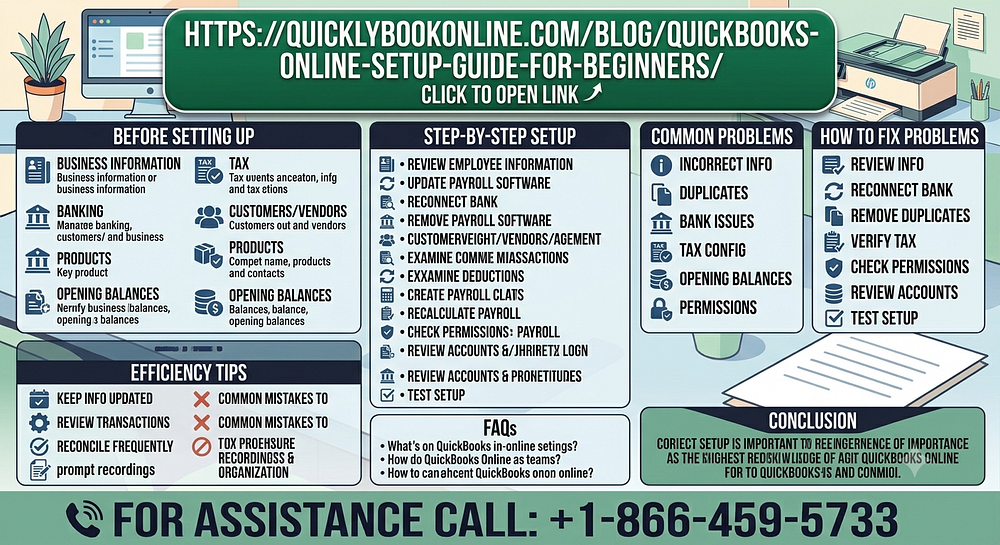
Things to Prepare Before Setting Up QuickBooks Online
Before beginning the setup process, gather the information you will need.
Business Information
Keep your business name, address, contact details, and industry information readily available.
Tax Information
Have your tax-related details prepared so you can configure your accounting settings accurately.
Banking Information
Prepare the information for the business bank accounts you plan to connect.
Customer and Vendor Details
Gather the contact information for your customers and suppliers.
Products and Services
Prepare a list of the products or services your business offers.
Opening Balances
If you are moving from another accounting system, have your opening balances available before starting.
How to Set Up QuickBooks Online Step by Step
Step 1: Create Your Account
Sign up and create your QuickBooks Online account using your business information.
Step 2: Enter Company Information
Complete your company profile by adding your business name, address, industry, and contact information.
Step 3: Customize Business Settings
Review and configure settings such as currency, fiscal year, tax preferences, and invoice options.
Step 4: Set Up the Chart of Accounts
Review the default Chart of Accounts and customize it to match your business requirements.
Step 5: Add Customers
Create customer profiles by entering their names and contact information.
Step 6: Add Vendors
Enter vendor information for the businesses or individuals you purchase from regularly.
Step 7: Create Products and Services
Add the products or services your business sells so they can be included on invoices and reports.
Step 8: Connect Your Bank Accounts
Link your business bank accounts to simplify transaction tracking and account reconciliation.
Step 9: Configure Payment Options
Set up the payment methods your business accepts from customers.
Step 10: Customize Invoice Templates
Modify invoice layouts to match your business branding and preferences.
Step 11: Invite Team Members
If multiple people will manage your accounting, assign appropriate user roles and permissions.
Step 12: Review Your Settings
Double-check all business information before starting regular bookkeeping.
Step 13: Record Your First Transactions
Enter sample income and expense transactions to confirm that everything is working correctly.
Common Problems During QuickBooks Online Setup
Some users may encounter challenges while setting up their account.
Incorrect Company Information
Entering inaccurate business details may affect invoices and financial reports.
Duplicate Customer Records
Creating duplicate customer profiles can cause confusion and reporting errors.
Bank Connection Issues
Some users may experience temporary problems while connecting bank accounts.
Incorrect Tax Configuration
Improper tax settings may affect future financial records and reporting.
Missing Opening Balances
Starting without accurate opening balances can impact financial reporting.
User Permission Issues
Incorrect user permissions may prevent team members from accessing required features.
How to Fix QuickBooks Online Setup Problems
Review Company Information
Verify that all business details have been entered correctly.
Update Banking Information
Reconnect your bank accounts if synchronization issues occur.
Remove Duplicate Records
Merge or delete duplicate customer and vendor entries whenever possible.
Verify Tax Settings
Review your tax settings to ensure they match your business requirements.
Check User Permissions
Assign the appropriate access level to each user.
Review the Chart of Accounts
Make sure your account categories accurately reflect your business activities.
Test Your Setup
Create a sample invoice and record a test payment to confirm that everything functions correctly.
Tips for Using QuickBooks Online Efficiently
Following these best practices can help maintain accurate financial records.
- Keep your company information updated.
- Review bank transactions regularly.
- Reconcile accounts frequently.
- Record income and expenses promptly.
- Maintain organized customer and vendor records.
- Customize invoices for a professional appearance.
- Monitor financial reports regularly.
- Back up important financial information when appropriate.
- Review user permissions periodically.
- Stay up to date with QuickBooks updates and new features.
Common Mistakes to Avoid
Avoid these common mistakes when setting up QuickBooks Online.
- Entering incorrect company information.
- Skipping the review of tax settings.
- Ignoring the Chart of Accounts.
- Creating duplicate customer or vendor records.
- Forgetting to connect business bank accounts.
- Assigning incorrect user permissions.
- Beginning bookkeeping before verifying the setup.
Avoiding these mistakes can save time and improve the accuracy of your financial records.
Frequently Asked Questions (FAQs)
How Long Does It Take to Set Up QuickBooks Online?
The setup time depends on the size and complexity of your business, but many users can complete the basic setup within a few hours.
Do I Need to Connect My Bank Account During Setup?
No. You can connect your business bank accounts later, but doing so during setup helps automate transaction tracking and reconciliation.
Can I Customize Invoices in QuickBooks Online?
Yes. You can customize invoice templates to reflect your business branding and preferences.
Why Is the Chart of Accounts Important?
The Chart of Accounts organizes your financial data into categories and helps generate accurate reports for your business.
How Can I Keep My QuickBooks Online Account Organized?
Review transactions regularly, reconcile your accounts, maintain accurate customer and vendor records, monitor financial reports, update your business information when needed, and periodically review user permissions.
Conclusion
Setting up QuickBooks Online correctly provides a strong foundation for managing your business finances efficiently. By entering accurate company information, organizing your Chart of Accounts, adding customers and vendors, connecting your bank accounts, customizing invoices, and carefully reviewing your settings, you can create an accounting system that supports your business as it grows. Regular maintenance and periodic reviews will help ensure your financial records remain accurate, organized, and up to date.


Comments
Post a Comment